Resume & CV
How to Write a CV in Word (10 Steps)
You can write a professional CV in Microsoft Word using an A4 page, margins of 1.27 cm to 2.54 cm, an 11 to 12 point font, clear Styles, and a single-column layout.
Written By Ita John
Founder, CVJury
Published 21 June 2024Updated 12 October 20269 min readPrimarily for a UK CV audience

1. Set Up the Page Size and Margins
Most of the controls in this guide need desktop Word. The browser version is fine for editing the wording and exporting a PDF, but you have to do the setup below in the desktop app.
Which version of Word can do what:
| Task | Desktop Word (Windows or Mac) | Word for the Web |
|---|---|---|
| Set the page size and margins | Full control | Kept as saved, but you cannot change it |
| Set a single-column layout | Full control | Kept as saved, but you cannot change it |
| Create or change a Style | Full control | Built-in styles only; you cannot create or change one |
| Adjust line spacing | Full control | Not available |
| See page breaks while editing | Shown | Not shown in editing view |
| Use the ruler | Shown | Not displayed |
| Check spelling and grammar | Both | Spelling only; no grammar check |
| Remove tracked changes | Full control | Open it in the desktop app |
| Export a PDF | Yes | Yes |
Source: Microsoft Support. Checked August 2026.
Open a new document through File > New, then choose Blank document. You can also search for CV or Resume; Microsoft may use the US term resume. If you choose a template, double click a simple option and remove every line of placeholder text.
Microsoft Word offers various CV templates for job seekers. These Microsoft Word CV templates can save time on the setup work, but choose a simple option from the CV templates gallery.
A professionally designed CV template can still hide the reading order inside columns or text boxes, so check it before you commit.
Word templates can be customised to suit you, but some templates are not optimised for ATS compatibility. Basic designs are straightforward and professional; bold designs use colour to attract attention. If you want CV templates built for UK applications, download our free CV templates.
Select Layout > Size > A4. A4 is usually already selected on a UK machine, but check rather than assume. If your Mac shows US Letter, look at the regional or printer settings before you change the document. Stay in portrait unless the employer asks for something else.
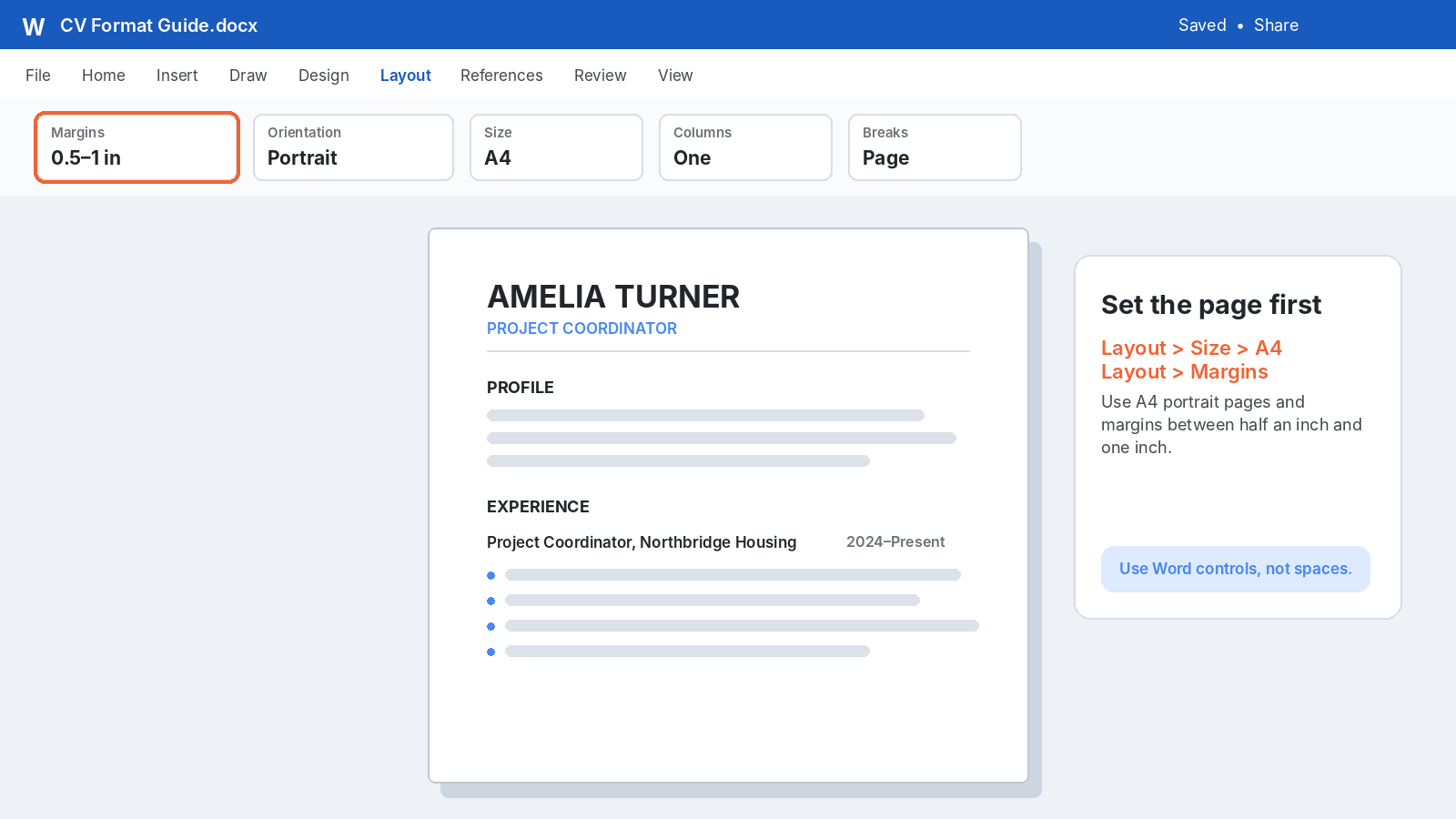
Screenshots show the controls used in desktop Word. Menu names may differ on Mac and the web.
Go to Layout > Margins. A practical starting range is 1.27 cm to 2.54 cm (0.5 to 1 inch) on each side.
Start near 2.54 cm (1 inch), and pull the margins in towards 1.27 cm (0.5 inch) only when you need the room. Cutting repeated or irrelevant wording can make a big difference before you narrow the margins. A cramped page is harder to read than a slightly longer one.
2. Select a Professional Font
Choose a modern, readable font such as:
- Arial
- Aptos
- Calibri
- Times New Roman
Body text often falls within 10 to 12 points, but 11 to 12 points is a safer starting range for readability. Keep the whole document to two or three font sizes so headings, job titles, and body text stay consistent.
3. Create a Clear Heading System
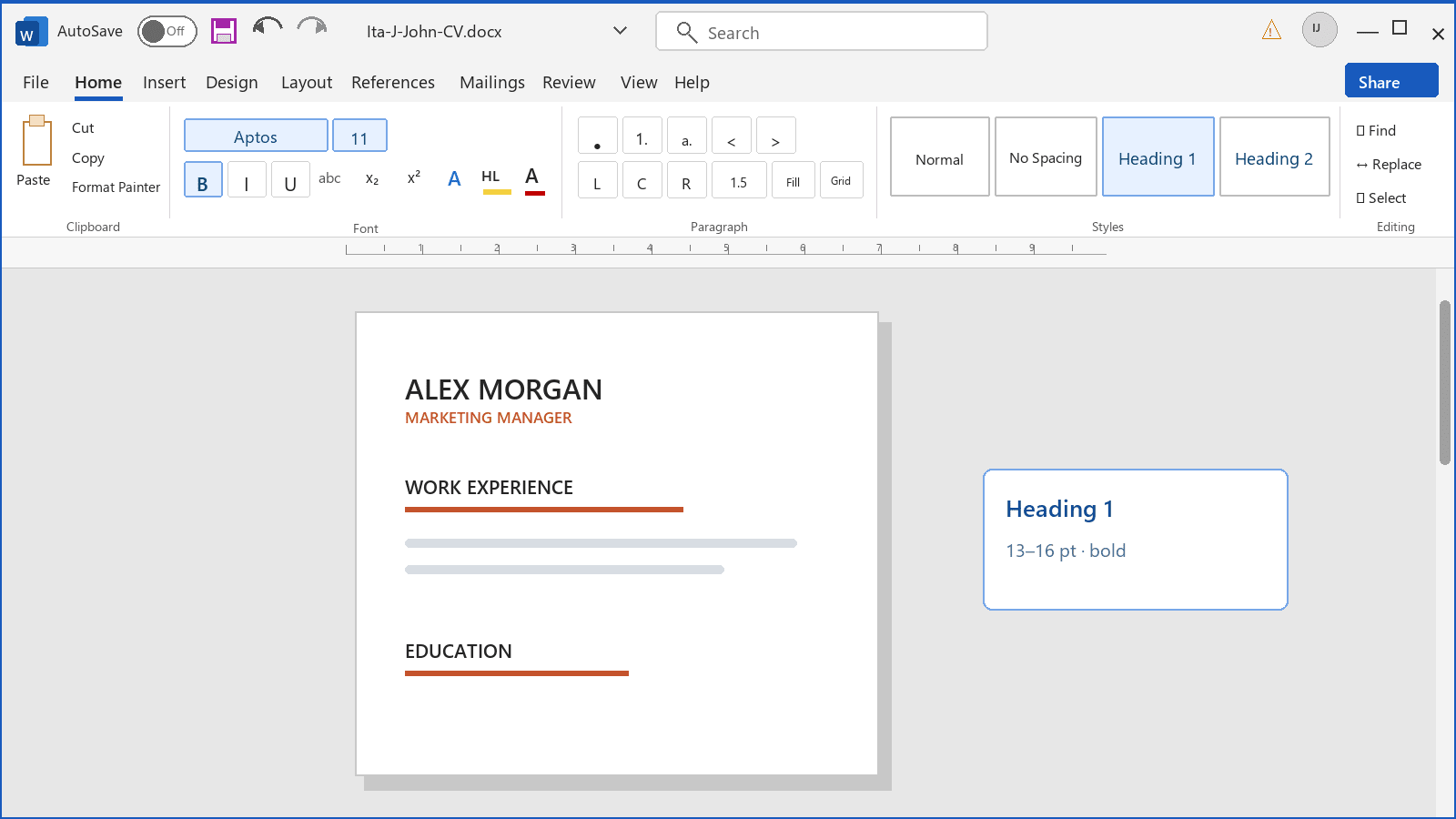
Word's built-in Styles do the repetitive work for you. Set a heading Style once, apply it to Work Experience, Education, and Skills, and every section using it updates together.
- Name: larger than the body text and bold
- Section headings: larger than the body text and bold
- Job titles or qualifications: body size or slightly larger and bold
- Supporting information: regular body text
A simple hierarchy matters more than decorative fonts, colours, or graphics. See these CV formatting tips for more help.
4. Use a Single-Column Layout
Keep the main CV in one reading order. A single column is the safest default when an applicant tracking system (ATS) may read your CV, and our guide to making your CV ATS-friendly goes further into it.
Greenhouse lists complex tables, columns, text boxes, graphics, headers, and footers as possible causes of missing information. If parsing fails in Greenhouse, the CV can remain attached while someone enters missing details by hand; other systems and employers work differently. This is not automatic rejection, but a single-column CV removes one avoidable risk.
5. Add Your Contact Details and CV Sections
Put your name and contact details at the top. For UK applications, include your name, phone number, professional email, and a relevant LinkedIn link. Add a portfolio website when it supports the role. Include only the information required for the application, and leave out age, date of birth, marital status, and nationality.
A standard CV structure is:
1
Contact details
2
Summary
3
Skills
4
Work experience
5
Education
6
Relevant qualifications or publications
Simple CV templates can save time, but keep the reading order clear.
6. Align Dates With Tab Stops
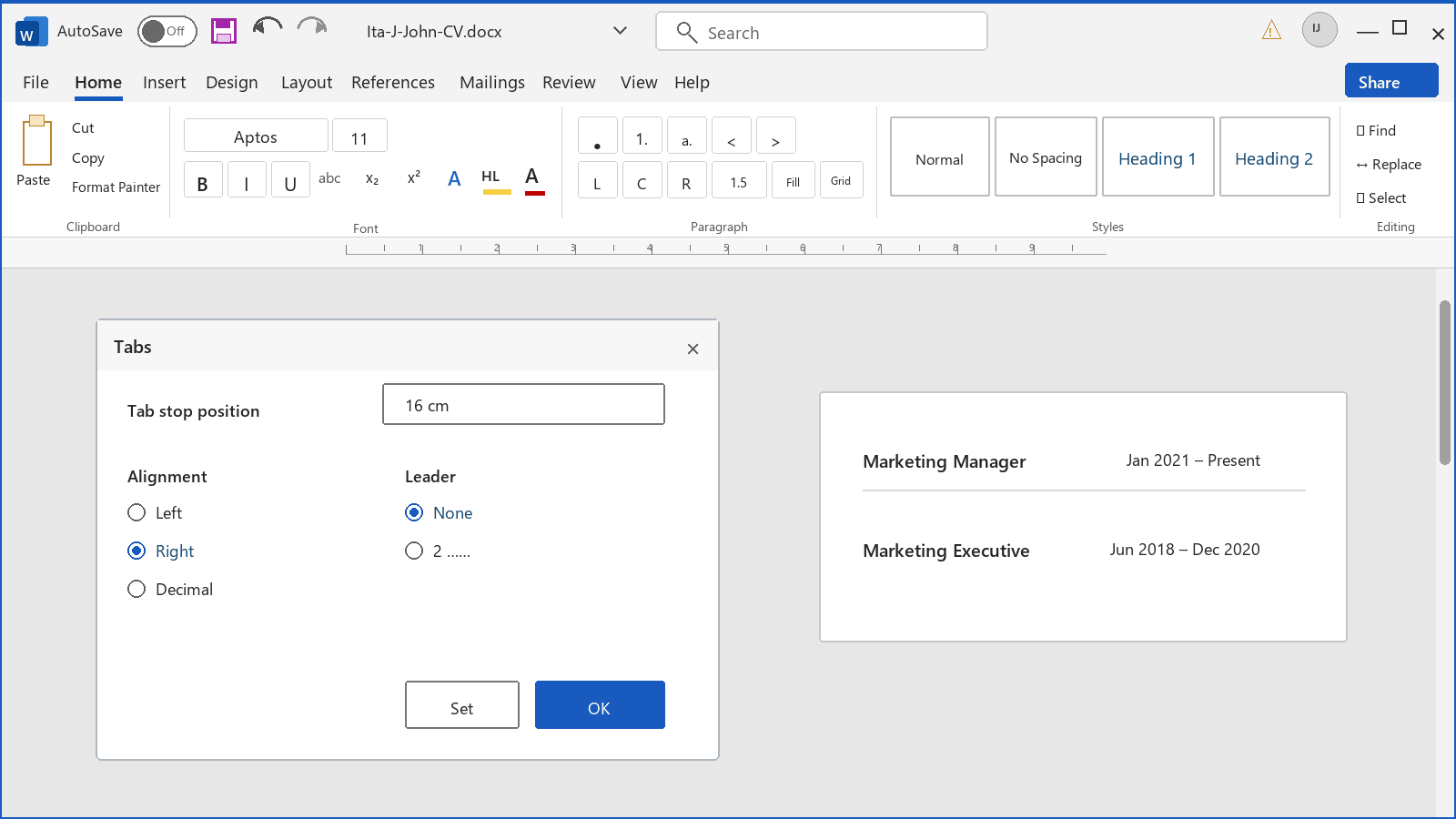
Do not push employment dates across the page with repeated spaces. Word document formatting can move when the CV is opened in another Word version, operating system or browser, so check the saved DOCX and PDF before sending.
On Windows, open the Paragraph dialogue from the Home tab, then select Tabs. On Mac, choose Format > Tabs.
Word measures the tab position from the left margin, not from the edge of the page. On A4 with 2.54 cm margins the text area is about 16 cm wide, so a stop at 16 cm sits on the right margin.
Word for the web can use tab stops that already exist, but you may need the desktop app to create or change them.
1
Select the relevant lines.
2
Add a right-aligned tab stop at the right margin.
3
Press Tab once between the job title and the date.
This keeps dates aligned throughout your work history.
7. Format Your Work History With Bullet Points
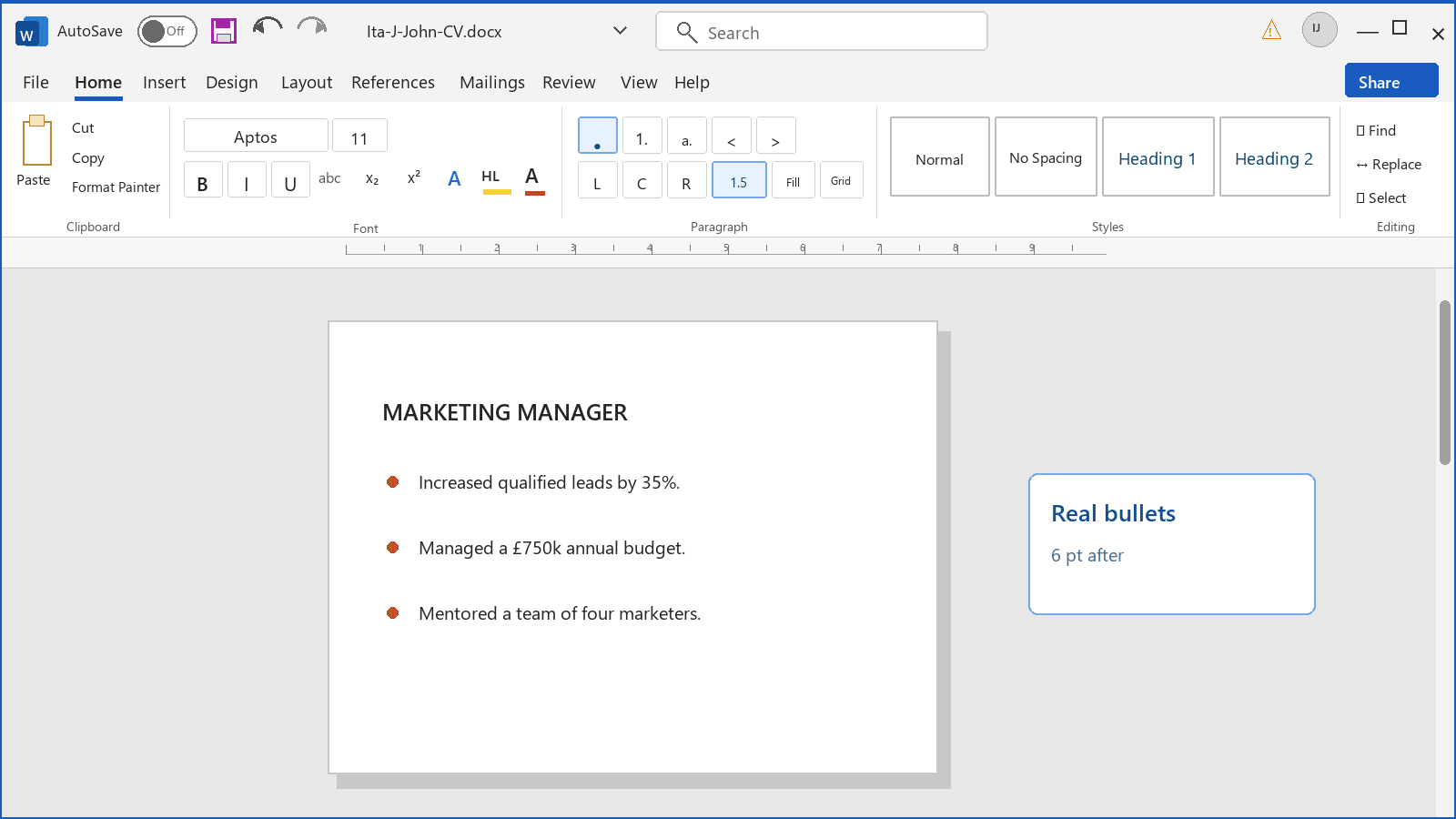
Use reverse chronological order to list your work experience, starting with your current or most recent position.
Select the lines you want to format, then choose Home > Bullets, rather than typing hyphens or symbols by hand.
Lead With Your Job Title, Employer and Dates
Keep the same format for every role:
Job Title | Company, Location
Month Year to Month Year
Under each position, add concise bullet points that cover:
- a responsibility, contribution, or achievement relevant to the target role;
- useful detail about the team, project, customer group, or tools involved;
- measurable evidence when you can support it.
Write each bullet with a clear action verb and focus on what you achieved. Quantify achievements when the evidence is accurate, but do not invent numbers.
Example:
Weak:
Responsible for responding to customer enquiries.
Stronger:
Resolved customer enquiries across phone and email channels, helping the team reduce unresolved cases during peak periods.
The stronger bullet shows the task, the working conditions, and the value created.
See how to write your work history section and show your key achievements.
Match Your CV to the Job Application
Yes, this takes longer. It is still useful because it forces you to answer the employer's real question: why you, for this job?
Read the job description, essential criteria, and company details. Work the requested skills into your professional summary, skills, and work history only where they reflect what you have done. The National Careers Service notes that highlighting relevant skills can improve your chance of an interview.
Wording is a bigger job than formatting, and our full guide to writing your CV covers it properly.
8. Control Spacing and Page Breaks
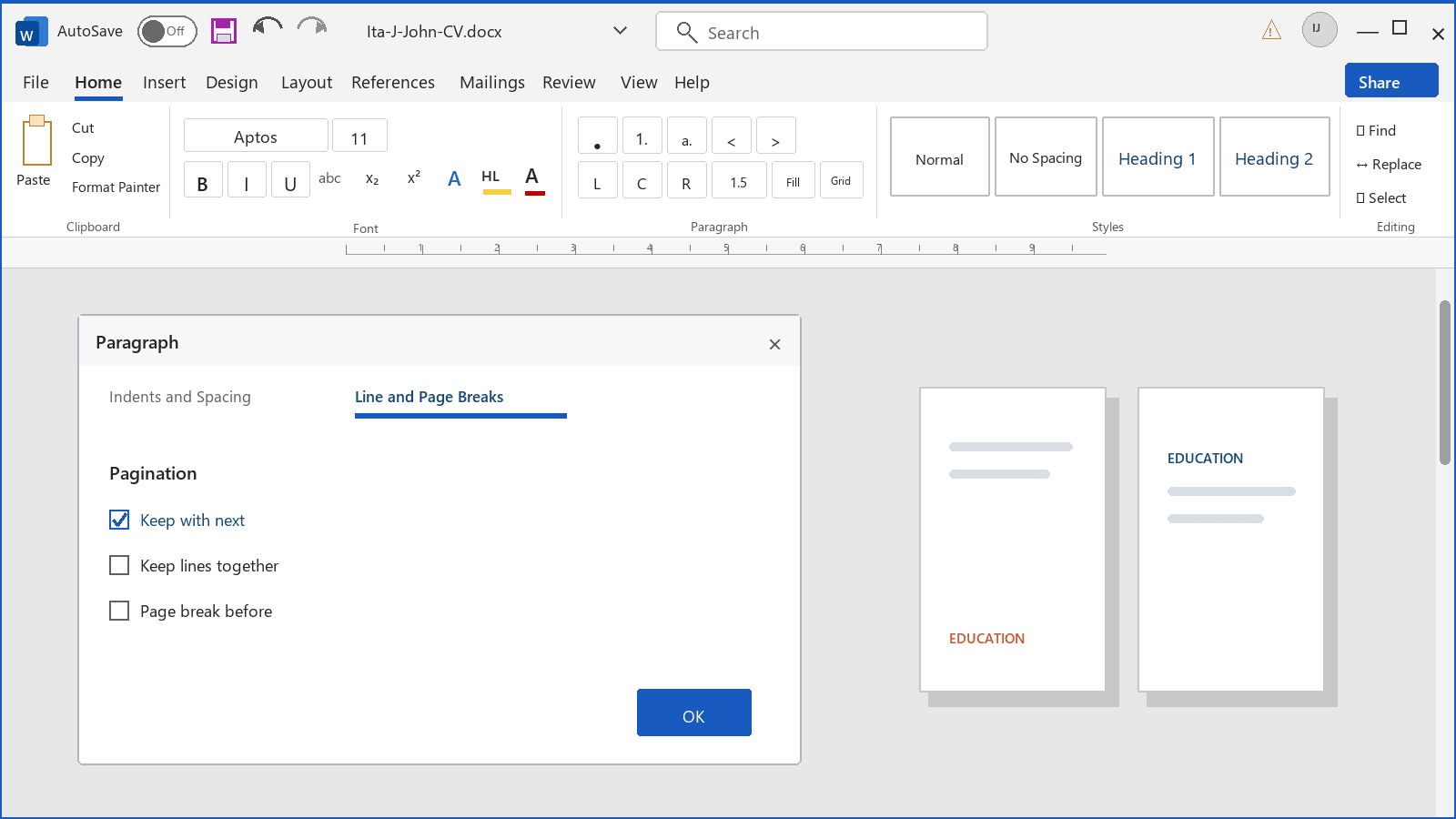
Set the gaps with Word's paragraph-spacing controls instead of pressing Enter repeatedly.
Under Paragraph > Line and Page Breaks, select Keep with next for section headings so they stay with the text below. Insert a manual page break when you deliberately want to start a new page, then check that no heading is left at the bottom on its own.
9. Use a Professional Filename
Give the file a name the employer can identify at a glance in a folder of job applications:
FirstName-LastName-CV-JobTitle.docx
Example: Amelia-Turner-CV-Marketing-Manager.docx
Keep the same base name for the PDF submission copy. Recruiters may download files from job boards or portals in batches, so yours should be identifiable without opening it.
Remove comments, tracked changes, and hidden drafting notes before you save the final version.
10. Save the Editable CV and Export the Application Copy
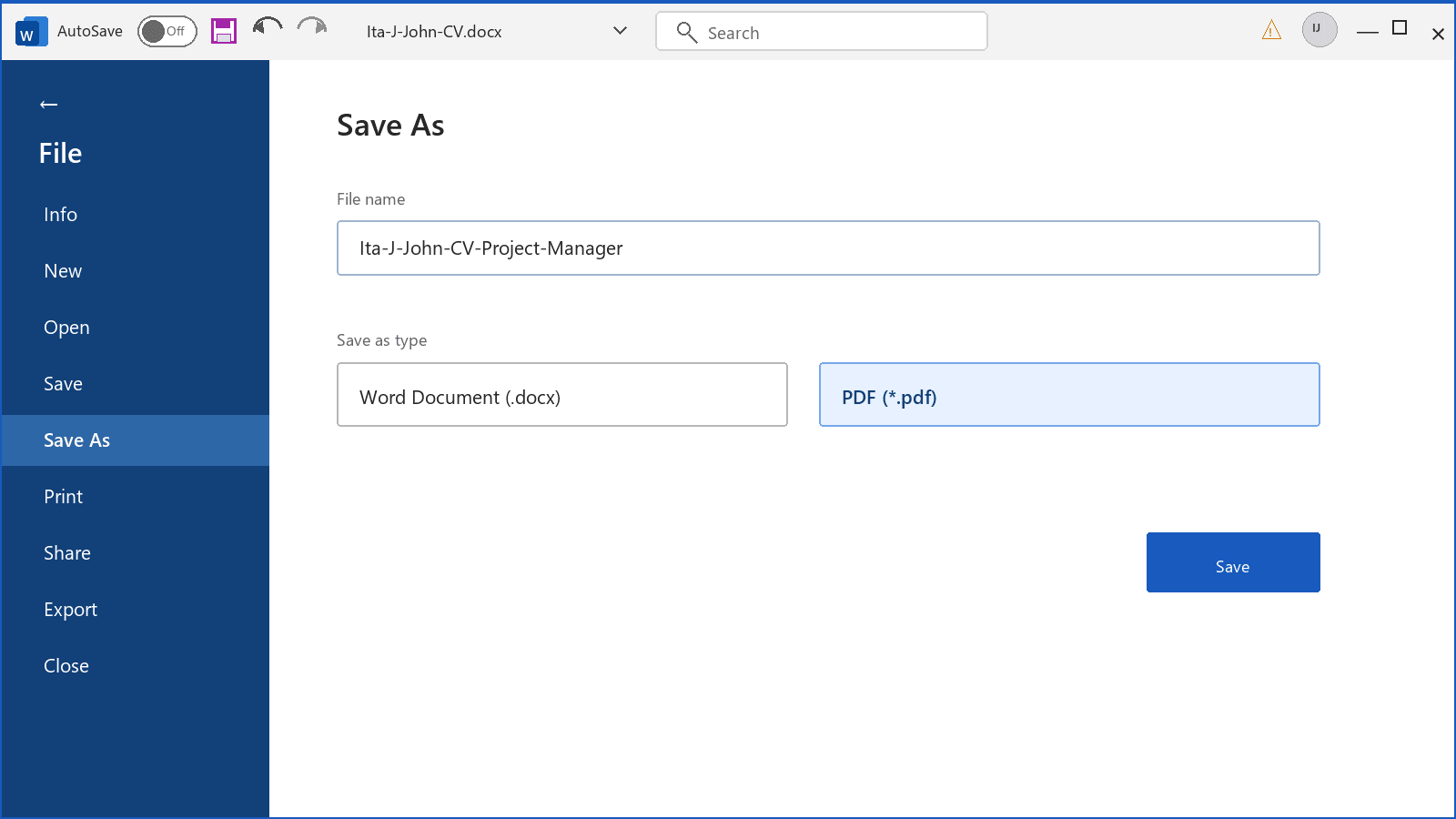
Keep an editable .docx master and adjust it for each role. Treat the exported PDF as the submission copy, not the version you edit for the next application. Follow the employer's instructions:
- Submit a PDF when the employer requested PDF format.
- Submit a .doc or .docx file when the advertiser asked for a Word document.
- Use a format accepted by the job board or portal.
- When no format is specified, a text-based PDF usually preserves the layout.
The route to the PDF depends on your version of Word:
- Windows: File > Save As or Save a Copy, then choose PDF.
- Mac: File > Save As or Save a Copy > File Format > PDF.
- Word for the web: File > Export > Download as PDF. Keep the editable copy in OneDrive, for example.
On Windows and Mac, use Review > Editor for spelling and grammar. In Word for the web, Editor may appear on the Home tab, and it checks spelling without the full grammar check. Run the Accessibility Checker from Review or use the search box to find reading-order or colour-contrast problems.
Complete this check before you upload the application copy. Open the saved DOCX and PDF, then check the contact details, selectable text, page layout, and the skills requested in the job description.
Send a Matching Cover Letter as a Separate Document
Create a matching cover letter as a separate document, written for the same position.
Check Your CV Against the Job Description
The formatting is complete. Now check whether you have written the CV for this specific job.
Open the job description beside your CV and read them together. Check that the skills the advert asks for appear in your own words, in your professional summary and your recent work history. If you cannot find them, the layout is not the problem.
Fix the wording in the editable DOCX master, then export the submission copy again.
CVJURY EXPERT CV REVIEW
Get an Expert CV Review
Send us the CV you think is finished. A CVJury specialist polishes your existing draft for clarity, structure, keywords and scan flow, then returns the file within 24 hours.
What You Send Us
Send the editable DOCX master, not the PDF.
Frequently Asked Questions About Creating a CV in Word
Is Microsoft Word a good programme for creating a CV?
Yes. Microsoft Word works across most operating systems and gives you control over fonts, headings, margins, spacing and file formats. Formatting can still shift between systems, so check the saved DOCX and PDF before sending.
Should I use a Microsoft Word CV template?
Yes, when the design is simple. Microsoft Word offers various CV templates for job seekers, and CV templates in Word help structure organised CVs. Word templates can be customised, but some are not optimised for ATS compatibility. Basic designs are straightforward and professional; bold designs use colour to attract attention, which may not suit every job application.
How long should my CV be?
For most UK applications, use one or two pages when that gives you enough room for relevant evidence. One page often suits an early-career applicant; two pages can suit a longer work history. Multi-page CV designs may suit senior, academic or specialist positions. The last 15 years is not a fixed UK rule: prioritise recent, relevant work and summarise older junior roles.
What sections should a Word CV include?
Standard sections include contact details, a professional summary, skills, work experience and education. Add qualifications, memberships, languages, technical skills or publications only when relevant.
How should I format my CV in Microsoft Word?
Use a single-column layout, 1.27 cm to 2.54 cm margins, a standard font such as Times New Roman or Arial, and two or three font sizes. Start near 1 inch and move towards 0.5 inch only while the page remains readable. Apply Word Styles and spacing consistently.
How should I present my work experience?
Use reverse chronological order and start bullet points with action verbs. Highlight key accomplishments, and quantify achievements only when you have accurate evidence.
How can I tailor my CV to a specific vacancy?
Tailor the CV for each job application. Use the job description to identify keywords and highlight skills requested in the advert, but add them only where they describe your real experience.
Should I send my CV as a Word document or PDF?
Follow the advert or portal. When the advert did not state any file type, save a text-based PDF for easy sharing because it usually preserves the layout. Keep the editable DOCX master; Word CVs can be easily edited by others after sending.
Sources Checked
National Careers Service, “How to write a CV”
UK sections, fonts, personal details, work history, and matching a CV to the advert. View source
Microsoft Support, “Save or convert to PDF in desktop apps”
Windows, Mac, and PDF editability. View source
Microsoft Support, “Export Word as PDF”
Word for the web. View source
Greenhouse Support, “Unsuccessful resume parse”
ATS formatting limits. View source
Microsoft Support, “Differences between using a document in the browser and in Word”
What desktop Word can do that the browser cannot. View source
Microsoft Support, “Insert or add tab stops”
Setting tab stops on Windows and Mac. View source
Microsoft Support, “Improve accessibility with the Accessibility Checker”
Running the check from the Review tab. View source
University of Bath Careers, “How to use Microsoft Word to write a CV”
Word formatting, tabs, bullets, Editor, and Accessibility Checker. View source
Sources checked: August 2026. Word menus change, so these pages are rechecked when the interface moves.
About the author
Ita John
Founder, CVJuryDr Ita John is the founder of CVJury. He previously worked as an IT recruiter in the London market for nearly seven years at Star Jobs Recruitment and founded the NECareersConnect careers platform. He brings experience in recruitment, practical project management, and business development. Earlier in his career, he taught business and economics at Oxford Brookes University and in Nigeria for over a decade. He lives in England with his wife and three sons. He earned a PhD in Entrepreneurship, International Business, and Economics from Oxford Brookes University. See how his background shapes the work he does for you. Read his story.
Connect
 LinkedIn
 Happenstance